
Mini Workshop: Build a Pet
With only an Arduino Uno Q board and your computer, build a pet and keep it happy!
| Lesson Goal | Get comfortable connecting an Arduino Uno Q to your laptop and flashing real code to it, and build a tiny Tamagotchi-style pet using nothing but the board and its built-in LED matrix. This is the 'on-board' version of Kiku, Her AI Studio's mascot and in-house pet. |
|---|---|
| What you'll learn | By the end of this workshop you will be able to: - Install Arduino App Lab and flash a sketch to the Uno Q over USB - Read typed commands from your laptop's keyboard over the Serial Monitor - Draw an animated face on the built-in LED matrix - Build a small state machine ("Mini Kiku") that reacts to typed commands |
| Tools you'll need | Arduino Uno Q board, USB cable, laptop with Arduino App Lab installed |
| End result | Your own Kiku, flashed and running entirely on your board, with an animated face on the LED matrix that you feed, play with, and put to sleep by typing into the Serial Monitor |
| Time needed to complete | 60 minutes |
Session Plan
Part 1 — Connect & Flash: Meet Your Board (20 min)
Warm-up: True or False? (5 min)
Before you touch the hardware, check your instincts against a few statements about what you're about to build:
Warm-up: True or False?
Flashing a sketch to the Arduino Uno Q requires a Bluetooth keyboard and a monitor.
The Serial Monitor lets your laptop and the board send text back and forth over the same USB cable used to flash code.
Once you type a character into the Serial Monitor, the board can only read it after you unplug and replug the USB cable.
Activity: Install App Lab and Connect Your Board (10 min)
Arduino App Lab is the software environment you'll use to write and upload code to your Uno Q. It runs in your browser and connects to your board over USB.
- Go to the Arduino App Lab getting-started page and follow the instructions to install the App Lab software on your laptop.
- Connect your Arduino Uno Q to your laptop using the USB cable.
- Open App Lab in your browser. You should see it detect your board.
- Select your board from the list and confirm the connection.
Troubleshooting: If your board isn't detected, try a different USB cable (some cables are power-only). Make sure App Lab is running in the background.
Activity: Blink Test (5 min)
Let's prove your board is alive. In App Lab, create a new app and look at the code that's scaffolded. Find sketch.ino and overwrite it with:
void setup() {
  pinMode(LED_BUILTIN, OUTPUT);
}

void loop() {
  digitalWrite(LED_BUILTIN, LOW);   // turn the LED on (LOW is the voltage level)
  delay(1000);
  digitalWrite(LED_BUILTIN, HIGH);  // turn it off
  delay(1000);
}
Run it. You should see the board's built-in LED blink on and off every second. That blink is proof your code is actually running on the board, not just sitting in your browser.
Part 2 — Build Kiku: Talk to It, Watch It React (30 min)
So far your board can run code, but it can't hear from you. With just the board and a USB cable connecting it to your laptop, the simplest two-way channel you have is the Serial Monitor: the same connection that uploads your sketch can also carry text messages back and forth while it runs.
Activity: Build Kiku (15 min)
It's time to build a pet! Kiku looks like this on device (when sleeping) - wake them to feed and play.
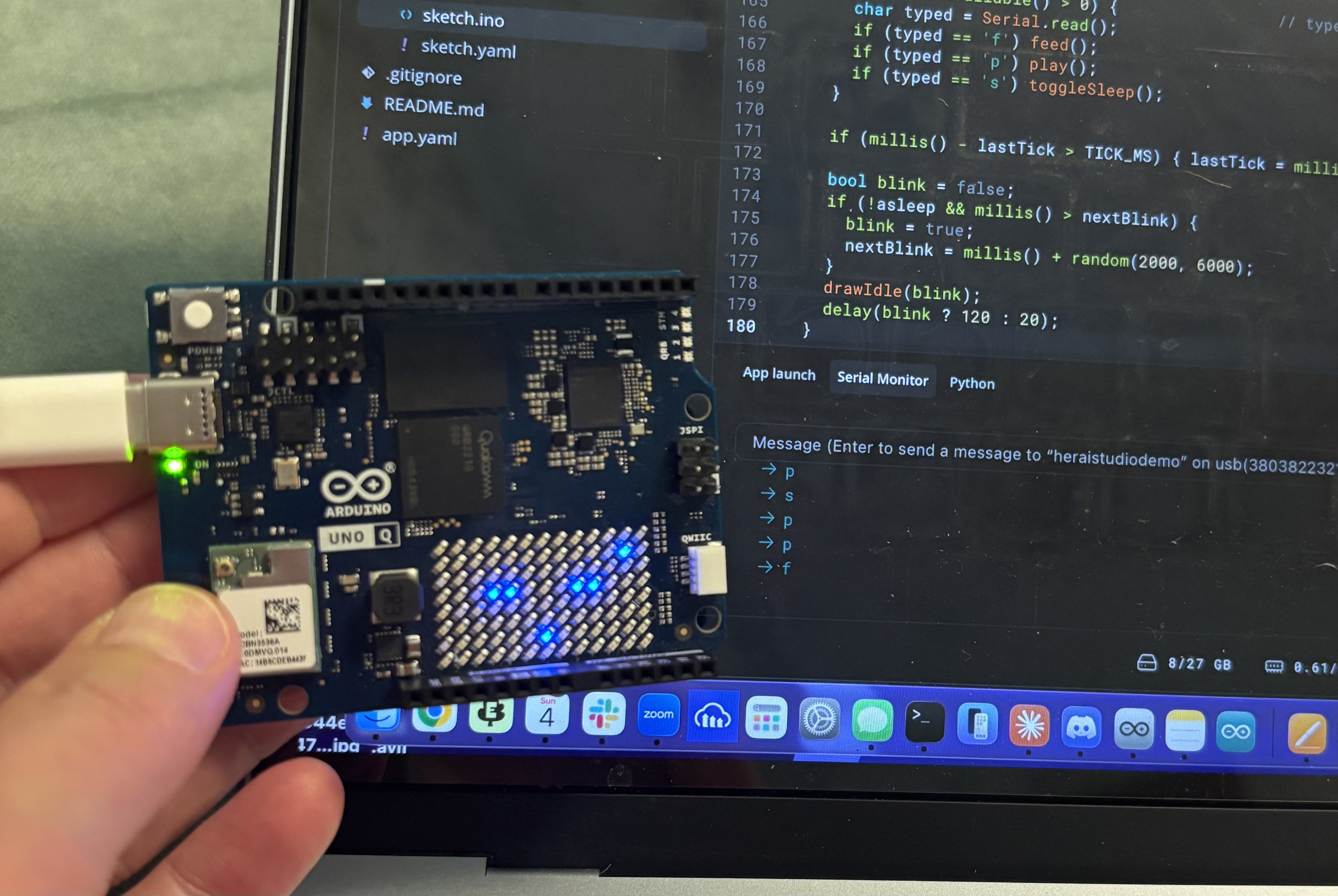
Overwrite sketch.ino in your app with this code:
#include <Arduino_LED_Matrix.h>

// ================== setup & types (keep above all functions) ==================
Arduino_LED_Matrix matrix;        // if this fails to compile, use: ArduinoLEDMatrix matrix;

const int W = 13, H = 8;
const uint8_t ON = 7;             // any non-zero value lights an LED
uint8_t frame[W * H];

enum Eyes    { EYES_OPEN, EYES_CLOSED, EYES_HAPPY, EYES_PEEK };
enum Mouth   { MOUTH_FLAT, MOUTH_SMILE, MOUTH_FROWN, MOUTH_OPEN, MOUTH_DOT };

// ---- Kiko's stats (0..10) ----
int hunger = 3;     // 0 = full, 10 = starving
int joy    = 6;     // 0 = sad, 10 = thrilled
int energy = 8;     // 0 = exhausted, 10 = rested
bool asleep = false;

const unsigned long TICK_MS = 10000;   // stats change every 10 s (raise to ~300000 for real pacing)
unsigned long lastTick = 0, nextBlink = 0;
int tickCount = 0;

// ================== drawing ==================
void clearFrame() { memset(frame, 0, sizeof(frame)); }
void px(int x, int y) { if (x >= 0 && x < W && y >= 0 && y < H) frame[y * W + x] = ON; }
void show() { matrix.draw(frame); }

void drawEye(int x, int oy, bool open) {
  if (open) { px(x, 2+oy); px(x+1, 2+oy); px(x, 3+oy); px(x+1, 3+oy); }
  else      { px(x, 3+oy); px(x+1, 3+oy); }
}

void drawEyes(Eyes e, int ox, int oy) {
  int L = 3 + ox, R = 8 + ox;
  switch (e) {
    case EYES_OPEN:   drawEye(L, oy, true);  drawEye(R, oy, true);  break;
    case EYES_CLOSED: drawEye(L, oy, false); drawEye(R, oy, false); break;
    case EYES_PEEK:   drawEye(L, oy, false); drawEye(R, oy, true);  break;
    case EYES_HAPPY:  // ^ ^
      for (int x : {L, R}) { px(x-1, 3+oy); px(x, 2+oy); px(x+1, 2+oy); px(x+2, 3+oy); }
      break;
  }
}

void drawMouth(Mouth m, int ox, int oy) {
  int c = 6 + ox;
  switch (m) {
    case MOUTH_FLAT:  px(c-1,6+oy); px(c,6+oy); px(c+1,6+oy); break;
    case MOUTH_SMILE: px(c-2,5+oy); px(c-1,6+oy); px(c,6+oy); px(c+1,6+oy); px(c+2,5+oy); break;
    case MOUTH_FROWN: px(c-2,6+oy); px(c-1,5+oy); px(c,5+oy); px(c+1,5+oy); px(c+2,6+oy); break;
    case MOUTH_DOT:   px(c,6+oy); break;
    case MOUTH_OPEN:
      for (int x = c-1; x <= c+1; x++) { px(x,5+oy); px(x,7+oy); }
      px(c-1,6+oy); px(c+1,6+oy);
      break;
  }
}

void face(Eyes e, Mouth m, int ox = 0, int oy = 0) {
  clearFrame(); drawEyes(e, ox, oy); drawMouth(m, ox, oy);
}

Mouth moodMouth() {
  if (hunger >= 7 || joy <= 3) return MOUTH_FROWN;
  if (joy >= 7) return MOUTH_SMILE;
  return MOUTH_FLAT;
}

void drawIdle(bool blink) {
  if (asleep) {
    face(EYES_CLOSED, MOUTH_DOT);
    int z = (millis() / 600) % 3;               // floating "z"
    px(10 + z, 2 - z);
  } else {
    face(blink ? EYES_CLOSED : EYES_OPEN, moodMouth());
    if (hunger >= 7 && (millis() / 400) % 2) {  // flashing "!" = hungry
      px(0,0); px(0,1); px(0,2); px(0,4);
    }
  }
  show();
}

// ================== actions ==================
void grumpyPeek() {
  face(EYES_PEEK, MOUTH_FLAT); show(); delay(700);
}

void shakeHead() {
  for (int i = 0; i < 4; i++) {
    face(EYES_OPEN, MOUTH_FROWN, (i % 2) ? 1 : -1); show(); delay(120);
  }
}

void feed() {
  if (asleep) { grumpyPeek(); return; }
  if (hunger == 0) { shakeHead(); return; }     // too full

  for (int x = 12; x >= 9; x--) {               // crumb slides in
    face(EYES_OPEN, MOUTH_OPEN); px(x, 6); show(); delay(120);
  }
  for (int i = 0; i < 3; i++) {                 // chomp chomp chomp
    face(EYES_CLOSED, MOUTH_FLAT); show(); delay(150);
    face(EYES_OPEN,   MOUTH_OPEN); show(); delay(150);
  }
  hunger = max(0, hunger - 3);
  joy    = min(10, joy + 1);
  face(EYES_HAPPY, MOUTH_SMILE); show(); delay(900);
}

void play() {
  if (asleep) { grumpyPeek(); return; }
  if (energy <= 1) {                            // too tired
    face(EYES_CLOSED, MOUTH_FLAT); show(); delay(900); return;
  }
  int jump[] = {0, -1, -2, -1, 0, -1, -2, -1, 0};
  for (int oy : jump) { face(EYES_HAPPY, MOUTH_SMILE, 0, oy); show(); delay(90); }
  for (int i = 0; i < 4; i++) {                 // wiggle
    face(EYES_HAPPY, MOUTH_SMILE, (i % 2) ? 1 : -1); show(); delay(110);
  }
  joy    = min(10, joy + 3);
  energy = max(0, energy - 2);
  hunger = min(10, hunger + 1);
}

void toggleSleep() {
  if (!asleep) {                                // yawn, then sleep
    face(EYES_OPEN, MOUTH_OPEN);  show(); delay(500);
    face(EYES_CLOSED, MOUTH_DOT); show(); delay(300);
    asleep = true;
  } else {                                      // wake up, blink blink
    asleep = false;
    for (int i = 0; i < 2; i++) {
      face(EYES_CLOSED, MOUTH_FLAT); show(); delay(150);
      face(EYES_OPEN,   MOUTH_FLAT); show(); delay(150);
    }
  }
}

// ================== stats over time ==================
void tick() {
  tickCount++;
  if (asleep) {
    energy = min(10, energy + 2);
    if (energy == 10) toggleSleep();            // wakes up when rested
  } else {
    energy = max(0, energy - 1);
    if (energy == 0) toggleSleep();             // passes out
    if (tickCount % 2 == 0) joy = max(0, joy - 1);
  }
  if (tickCount % 3 == 0) hunger = min(10, hunger + 1);
}

// ================== main ==================
void setup() {
  matrix.begin();
  Serial.begin(9600);

  randomSeed(analogRead(A0));
  nextBlink = millis() + 2000;
  toggleSleep(); toggleSleep();                 // little "waking up" intro
}

void loop() {
  if (Serial.available() > 0) {                 // typed on your laptop's keyboard
    char typed = Serial.read();
    if (typed == 'f') feed();
    if (typed == 'p') play();
    if (typed == 's') toggleSleep();
  }

  if (millis() - lastTick > TICK_MS) { lastTick = millis(); tick(); }

  bool blink = false;
  if (!asleep && millis() > nextBlink) {
    blink = true;
    nextBlink = millis() + random(2000, 6000);
  }
  drawIdle(blink);
  delay(blink ? 120 : 20);
}
Take a minute to understand the code: where are the stat variables? How do they work to track mood? Where does typing f turn into a feed() call? Which lines actually talk to the LED matrix?
Activity: Feed, Play, Sleep (10 min)
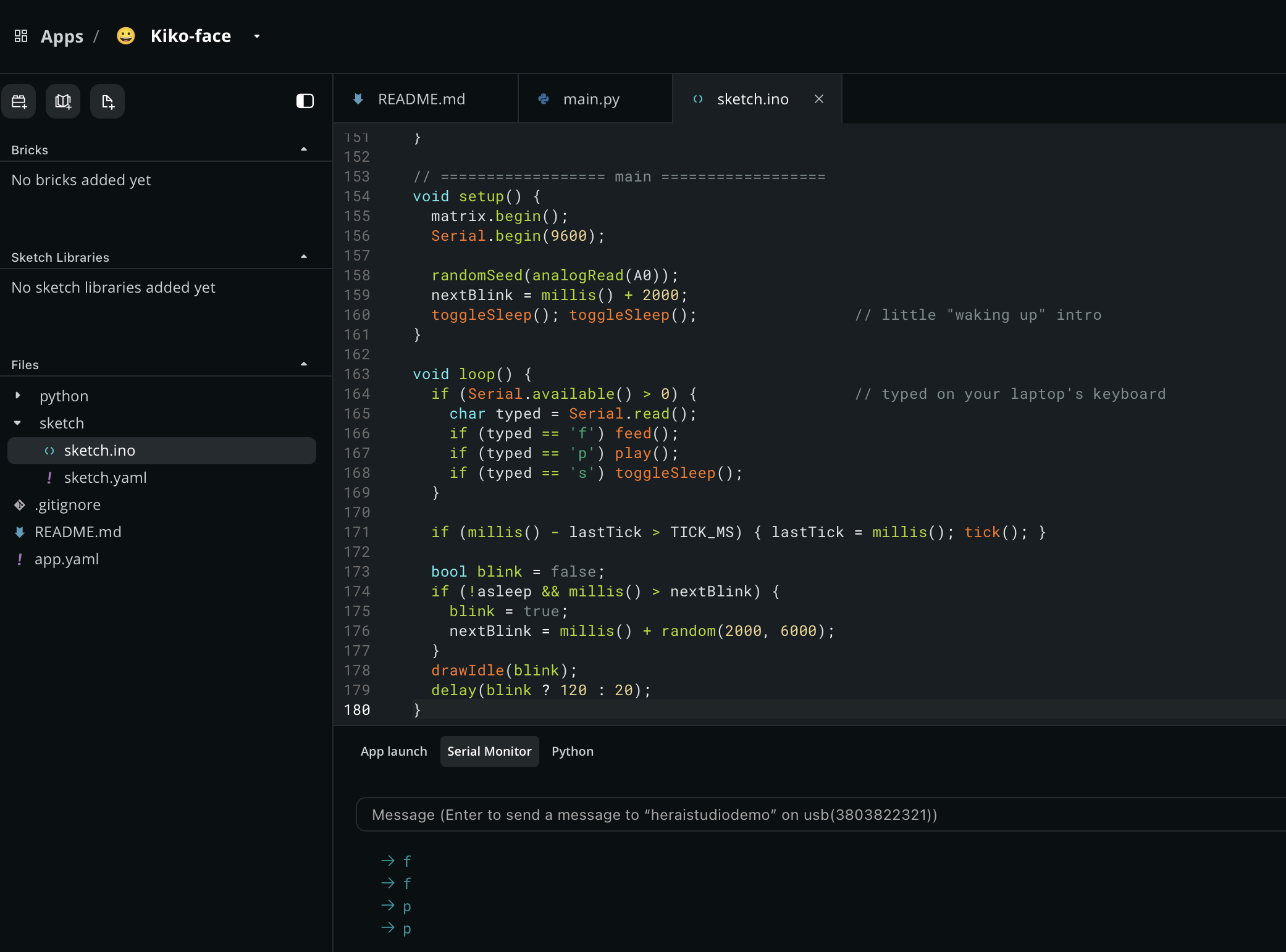
Run the sketch, open the Serial Monitor in App Lab, and type f to feed Kiku, p to play, and s to put it to sleep (or wake it back up). Watch its face react on the LED matrix, and leave it running for a few minutes to see hunger, joy, and energy drift on their own.
Part 3 — Make It Yours: Customize & Reflect (10 min)
Activity: Customize Kiku (5 min)
Pick one small change and make it:
- Change how fast hunger, joy, or energy drift by adjusting
TICK_MSor the amounts intick() - Draw a new face expression (a wink, a surprised look) by adding a case to
drawEyes()ordrawMouth() - Change the "waking up" intro animation in
setup()to something of your own
Reflection & Discussion (5 min)
- What surprised you about getting code to actually run on real hardware, versus just reading it on a screen?
- Mini Kiku's behavior is entirely
if/elselogic you can read and predict. What's one way you'd make it feel more alive without changing that? - What's one thing you'd want to build next with this board?
Take-Home
Check Your Understanding
- What's the minimum hardware needed to flash and run a sketch on the Uno Q?
- What do
Serial.available()andSerial.read()each do? - What does the
tick()function do, and why does Mini Kiku need it?
Quick Knowledge Check
Post-Session Knowledge Check
What's the minimum hardware needed to build and run Kiku?
What does Serial.available() tell your sketch?
In this app, what triggers a feed/play/sleep action?
What does face() do each time it's called, right before drawEyes() and drawMouth() run?
Further Your Knowledge
- Add a fourth Serial command (e.g.
bfor "boredom") and give it its own reaction - Try typing commands quickly in a row — does Mini Kiku handle it gracefully, or does something break?
- If you want to go further, the full multi-week course ends with a full Kiku build including AI and peripherals
Supplemental Reading
- Arduino App Lab Documentation
- Arduino
SerialReference — everythingSerial.begin(),.available(), and.read()can do