Building with Arduino: Meet Kiku
| Lesson Goal | Bring Kiku, your Tamagotchi-style Arduino pet, to life: an blinking heartbeat, a Bluetooth keyboard for interaction, and code that gives it a personality that needs feeding, playing, and sleep. This lesson gets you familiar with Arduino and the Her AI Studio cyberdeck peripherals |
|---|---|
| What you'll learn | By the end of this week you will be able to: - Set up the Arduino Uno Q with Arduino App Lab and upload your first sketch to your board - Read and edit Arduino code to control the built-in LED array - Pair a Bluetooth keyboard with the board and read key presses in your code - Explain how a simple state machine tracks Kiku's hunger, energy, and mood over time - Use F, P, and S key presses to feed, play with, and put Kiku to sleep, and watch its LED patterns respond |
| Tools you'll need | Arduino Uno Q board, USB cable, laptop with Arduino App Lab installed, your AI Kit's Bluetooth keyboard, USB Hub, and small monitor |
| End result | A working Kiku — an Arduino pet whose behavior changes based on hunger, energy, and mood, all controlled with a paired Bluetooth keyboard |
| Time needed to complete | 90 minutes |
Session Plan
Part 1 — Setup & Blink: Giving Kiku a Heartbeat (30 min)
Warm-up: True or False? (5 min)
Before you touch the hardware, check your instincts against a few statements about what you're about to build:
Warm-up: True or False?
An Arduino sketch's loop() function runs once and then stops.
The Arduino Uno Q has two separate "brains": an MCU for real-time hardware control, and an MPU running Linux for things like Python apps and web pages.
LED_BUILTIN and LED3 are controlled the exact same way, since they're really the same LED.
Activity: Install App Lab and Connect Your Board (10 min)
Arduino App Lab is the software environment you'll use to write and upload code to your Uno Q. It runs in your browser and connects to your board over USB. Here's a diagram of the board's various pins (called a "pinout" diagram):
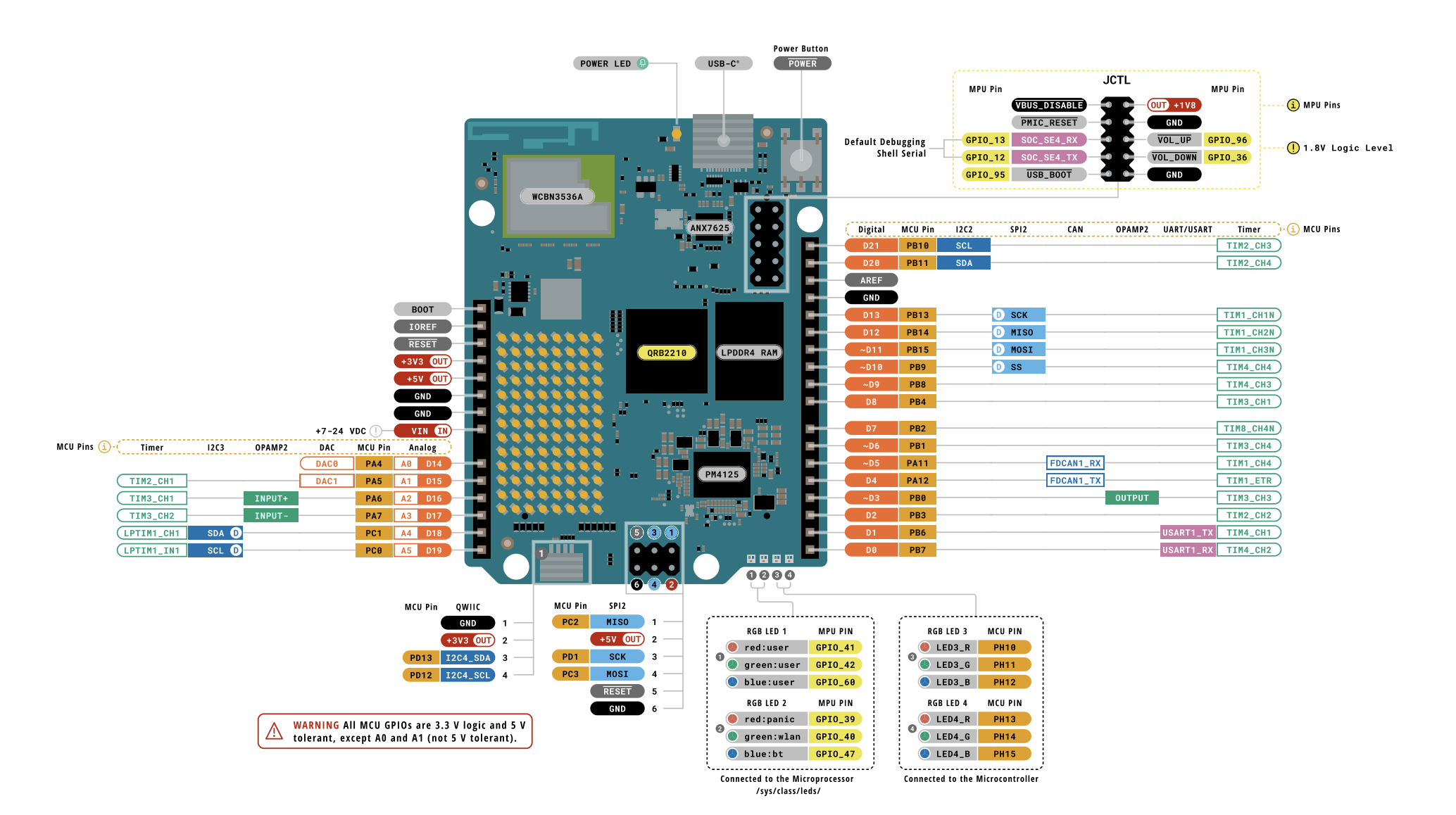
We're going to start by blinking some LED lights (the ones at the bottom right of this diagram)
- Go to the Arduino App Lab getting-started page and follow the instructions to install the App Lab software on your laptop.
💡 Since you may be taking part in a workshop room where many Arduinos are on the same network, give your board a meaningful name to you so that you can be sure to flash only to it when working through this session.
- Connect your Arduino Uno Q to your laptop using a USB cable and follow the instructions to get it online. Check with your instructor on your wifi credentials or use your own (you can also tether to your phone's hotspot)
- Open App Lab in your browser. You should see it detect your board with the name you gave it.
- Select your board from the list and confirm the connection.
Troubleshooting: If your board isn't detected, try a different USB cable (some cables are power-only). Make sure that App Lab is running in the background.
Mini-lecture: How an Arduino Sketch Works (5 min)
You write code for your device by using App Lab, "flashing" software that is called a "sketch" to the board over USB. An Arduino sketch (the name for an Arduino program) has two essential functions:
void setup() {
  // Runs once when the board powers on or resets
  // Use it to initialize pins, set up serial, connect to WiFi, etc.
}

void loop() {
  // Runs over and over again, forever
  // This is where your main program logic lives
}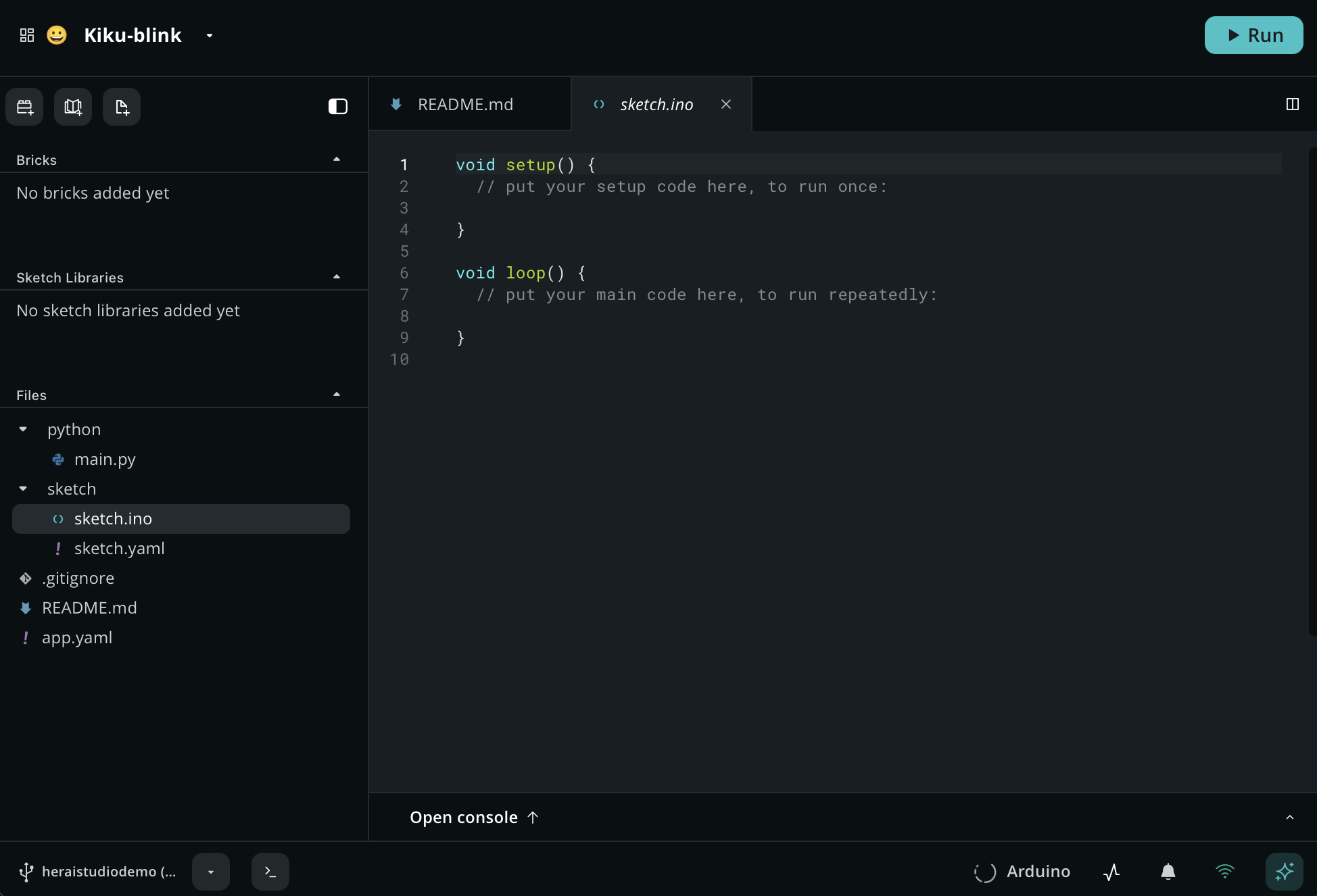
The Uno Q has some built-in LED lights plus a blue LED array, a grid of individually controllable LEDs. In App Lab, you control them by writing to specific pins or using the board's LED library. To start, let's make one of the individual LEDs become Kiku's heartbeat — a proof of life before we build a personality.
Activity: A Heartbeat (10 min)
Let's write your first sketch. Once your board is connected to your computer and wifi, you can upload code to it via Arduino App Lab. In App Lab, create a new app called Kiku. Open this new app and take a look at the files that were created. Go to the sketch.ino file and overwrite it with the following code:
void setup() {
  pinMode(LED_BUILTIN, OUTPUT);      // initialize digital pin LED_BUILTIN as an output.
}

void loop() {
  digitalWrite(LED_BUILTIN, LOW);    // turn the LED_BUILTIN on (LOW is the voltage level)
  delay(1000);
  digitalWrite(LED_BUILTIN, HIGH);
  delay(1000);

  /* Note that the logic is inverted (LOW for on, HIGH for off), which is typical for
     built-in LEDs that are wired with the cathode connected to the pin.
  */
}
Run this sketch on your board by clicking "run" in App Lab. Watch the red LED in the bottom right corner of the board (as seen with the cord facing up). It should blink on and off — Kiku's first heartbeat.
You can turn Kiku's heartbeat green by changing the sketch and re-running it:
void setup() {
  pinMode(LED3_G, OUTPUT);      // initialize the LED3 green pin
}

void loop() {
  digitalWrite(LED3_G, LOW);    // turn the green LED on
  delay(1000);
  digitalWrite(LED3_G, HIGH);   // turn it off
  delay(1000);
}
Challenge:
- Change the delay time to make the heartbeat faster or slower
- Change the LED light color; try LED3_B or LED3_R
💡
LED_BUILTINis a simple single-color indicator meant for basic on/off status, whileLED3(andLED4) are full RGB LEDs — and it's no accident that there are four RGB LEDs total: two (LED3,LED4) are wired to the MCU (Uno Q's microcontroller unit that directly controls the hardware), so your .ino sketch can control them directly. The other two (LED1,LED2) are wired to the MPU (microprocessor unit), the board's Qualcomm chip or Linux side, reflecting the Uno Q's dual-brain design. You'd program the MPU with Python code.
Part 2 — Give Kiku a Home: Pair the Bluetooth Keyboard (35 min)
Activity: Connecting Peripherals (5 min)
Kiku needs a better place to live. Let's move them from the Arduino to your mini monitor. This is the first step in using the peripherals included in your AI kit; you'll set up your Arduino as a "SBC" - a single board computer, the base architecture of a cyberdeck.
Some of your peripherals are simple plugs you need to connect, so let's do those first:
- Disconnect the Arduino from your computer
- Connect the USB Hub's built-in USB C cable to the Arduino
- Connect your other USB C cable to a power source (could be a plug, or your computer) and to the USB Hub
- Connect the mini monitor to the USB hub using your HDMI cable and a micro USB to USB cable
- Reconnect the board to a power source and boot it.
Now you need to work with the keyboard, which is connected to your board via Bluetooth.
On your laptop, in App Lab, find your board's name at the bottom left and press the > icon next to it to connect to the board's shell, or terminal. This is how you control your board remotely.
- With your small keyboard powered on, put it in pairing mode. Depending on the model, it may be pressing
functionandshiftbuttons. A light should blink quickly when it's in pairing mode. - Once connected, type
bluetoothctlin the shell you launched from App Lab. - Type
scan onto scan for pairable devices - Look for the name of your keyboard and copy its ID
- Type
pair <the id you just copied>to pair - You'll see some text, and then hopefully a notice that the pairing was successful. Now you can use your keyboard to login to the mini monitor.
Enter your board's password into the Linux login screen on your mini monitor. App Lab should launch on your mini monitor. Find your Kiku app and run it.
You can now enter code in App Lab on your laptop and watch it run on the mini computer you just created, since they are both now on the same network.
Activity: Read Key Presses and Light Up (10 min)
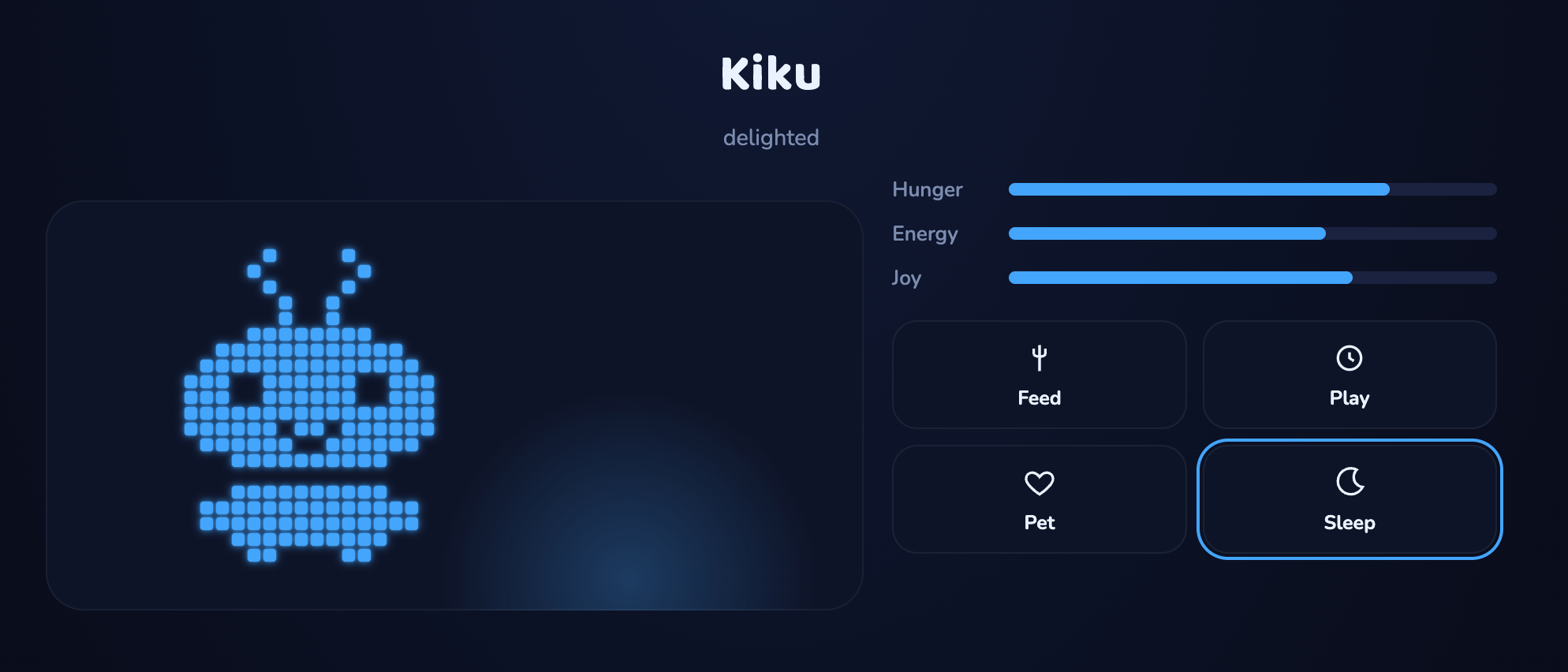
Now you have a fully functional SBC with a microcontroller board, a small monitor and keyboard, and cables connecting them all. This is the core of your cyberdeck. Kiku's home is a real web app — the one shown on your mini monitor — that you can feed, pet, play with, and let sleep, with a pixel-art sprite and stat bars for hunger, energy, and joy.
We're going to do this with App Lab's Web UI brick — a pre-built module that gives your app a live web page (index.html, style.css, app.js) already wired up to talk to your sketch over WebSocket, no server code required.
In your Kiku app, use the add brick icon to add the Web UI brick. Bricks are modules of code that help you build features.
Move Kiku's real interface into the scaffolded files:
By adding the Web UI Brick, some files have been added to your app. These are the building blocks of your web app.
In app.js, replace the scaffolded contents with a keydown listener that calls those functions directly (so Kiku reacts on screen immediately) and also sends the key over the brick's WebSocket:
const ui = new WebUI();
ui.on_connect(onUIConnected);

function onUIConnected() {
  console.log('Connected to the server');
}

document.addEventListener('keydown', function (e) {
  const key = e.key.toLowerCase();
  const actions = { f: window.feed, p: window.play, s: window.toggleSleep };
  if (actions[key]) {
    actions[key]();                        // Kiku reacts on screen immediately
    ui.send_message('keypress', { key });  // tell Python which key was pressed
  }
});
In main.py, receive that WebSocket message and relay it to the sketch:
from arduino.app_utils import *
from arduino.app_bricks.web_ui import WebUI

ui = WebUI()

def on_keypress(client, data):
    key = data.get('key')
    Bridge.call("set_mood", key)  # tell the sketch what key was pressed

ui.on_message("keypress", on_keypress)

App.run()
In index.html, build the interface:
<!doctype html>
<html lang="en">
  <head>
    <meta charset="UTF-8" />
    <meta name="viewport" content="width=device-width, initial-scale=1.0" />
    <title>Kiku</title>
    <link rel="preconnect" href="https://fonts.googleapis.com">
    <link rel="preconnect" href="https://fonts.gstatic.com" crossorigin>
    <link href="https://fonts.googleapis.com/css2?family=Baloo+2:wght@500;700&family=Nunito:wght@400;600;700&display=swap" rel="stylesheet">
    <link rel="stylesheet" type="text/css" href="style.css" />
  </head>
  <body>
    <div class="app">
      <header>
        <p class="name">Kiku</p>
        <p class="status" id="status">feeling okay</p>
      </header>

      <div class="layout">
        <section class="pet-panel">
          <div class="stage">
            <div class="aura"></div>
            <div class="matrix-wrap" id="matrix-wrap">
              <div class="matrix" id="matrix"></div>
            </div>
            <div class="zzz">z z z</div>
          </div>
        </section>

        <section class="control-panel">
          <div class="stats">
            <div class="stat-row">
              <span class="stat-label">Hunger</span>
              <div class="stat-track"><div class="stat-fill" id="bar-hunger"></div></div>
            </div>
            <div class="stat-row">
              <span class="stat-label">Energy</span>
              <div class="stat-track"><div class="stat-fill" id="bar-energy"></div></div>
            </div>
            <div class="stat-row">
              <span class="stat-label">Joy</span>
              <div class="stat-track"><div class="stat-fill" id="bar-joy"></div></div>
            </div>
          </div>

          <div class="actions">
            <button class="action" id="btn-feed">
              <svg viewBox="0 0 24 24" fill="none" stroke="currentColor" stroke-width="1.8"><path d="M12 3v8M8 5.5v4M16 5.5v4M8 9.5s1 1.5 4 1.5 4-1.5 4-1.5M12 11v10"/></svg>
              Feed
            </button>
            <button class="action" id="btn-play">
              <svg viewBox="0 0 24 24" fill="none" stroke="currentColor" stroke-width="1.8"><circle cx="12" cy="12" r="8"/><path d="M12 8v4l3 2"/></svg>
              Play
            </button>
            <button class="action" id="btn-pet">
              <svg viewBox="0 0 24 24" fill="none" stroke="currentColor" stroke-width="1.8"><path d="M12 20s-7-4.35-9-9c-1.2-3 1-6 4-6 2 0 4 1.5 5 3 1-1.5 3-3 5-3 3 0 5.2 3 4 6-2 4.65-9 9-9 9z"/></svg>
              Pet
            </button>
            <button class="action" id="btn-sleep">
              <svg viewBox="0 0 24 24" fill="none" stroke="currentColor" stroke-width="1.8"><path d="M17 3a9 9 0 1 0 4 12 7 7 0 0 1-4-12z"/></svg>
              Sleep
            </button>
          </div>
        </section>
      </div>
    </div>

    <script>
      (function(){
        // ---------- Game state ----------
        var state = { hunger: 70, energy: 70, joy: 70, asleep:false };
        function load(){
          try{
            var raw = localStorage.getItem('kiku-state');
            if(raw){ var s = JSON.parse(raw); Object.assign(state, s); }
          }catch(e){ /* storage unavailable, start fresh */ }
        }
        function save(){
          try{ localStorage.setItem('kiku-state', JSON.stringify(state)); }catch(e){}
        }
        load();

        // ---------- Kiku's pixel-matrix sprite ----------
        // 16-wide art rows, built with repeat() so counts can't drift.
        var rep = function(ch,n){ return ch.repeat(n); };
        var ART = [
          rep('.',5)+'#'+rep('.',4)+'#'+rep('.',5),               // antenna tips
          rep('.',4)+'#'+rep('.',6)+'#'+rep('.',4),
          rep('.',5)+'#'+rep('.',4)+'#'+rep('.',5),
          rep('.',6)+'#'+rep('.',2)+'#'+rep('.',6),
          rep('.',6)+'#'+rep('.',2)+'#'+rep('.',6),
          rep('.',4)+rep('#',8)+rep('.',4),                       // head top
          rep('.',2)+rep('#',12)+rep('.',2),
          rep('.',1)+rep('#',14)+rep('.',1),
          rep('#',3)+rep('.',2)+rep('#',6)+rep('.',2)+rep('#',3), // eyes
          rep('#',3)+rep('.',2)+rep('#',6)+rep('.',2)+rep('#',3),
          rep('#',16),
          rep('#',6)+rep('.',4)+rep('#',6),                       // mouth
          rep('.',1)+rep('#',14)+rep('.',1),
          rep('.',3)+rep('#',10)+rep('.',3),
          rep('.',16),
          rep('.',3)+rep('#',10)+rep('.',3),
          rep('.',1)+rep('#',14)+rep('.',1),
          rep('.',1)+rep('#',14)+rep('.',1),
          rep('.',3)+rep('#',10)+rep('.',3),
          rep('.',4)+rep('#',2)+rep('.',4)+rep('#',2)+rep('.',4)
        ];
        var WIDTH = 18, HEIGHT = 20; // 16 core + 2 cols reserved for the (unused) arm slot
        var EYE_ROWS = [8,9], EYE_COLS = [[3,4],[11,12]];
        var ARM_ROWS = [9,10,11], ARM_COLS = [16,17];

        function setChars(str, indices, ch){
          var chars = str.split('');
          indices.forEach(function(i){ chars[i] = ch; });
          return chars.join('');
        }

        function buildFrame(eyesClosed, waving, joy, energy, eating, droopy, happyEyes, angryEyes, excited){
          var rows = ART.map(function(r){ return r + '..'; });
          var blank = rep('.', WIDTH);

          // antennae: excited (straight up, alert) beats droopy (curled — angry or asleep)
          if(excited){
            rows[0] = setChars(blank, [6,9], '#');
            rows[1] = setChars(blank, [6,9], '#');
            rows[2] = setChars(blank, [6,9], '#');
            rows[3] = setChars(blank, [6,9], '#');
          } else if(droopy){
            rows[0] = blank;
            rows[1] = setChars(blank, [7,8], '#');
            rows[2] = setChars(blank, [7,8], '#');
            rows[3] = setChars(blank, [6,9], '#');
          }

          // mood: joy shapes the mouth
          if(joy >= 70){
            // 2-row arc: corners stay at row11 (default), centre dips to row12 — a clear smile
            rows[11] = setChars(rows[11], [7,8], '#');
            rows[12] = setChars(rows[12], [7,8], '.');
          } else if(joy < 30){
            // inverted arc: centre stays at row11, corners droop down to row12 — a clear frown
            rows[11] = setChars(rows[11], [6,9], '#');
            rows[12] = setChars(rows[12], [6,9], '.');
          }

          // mood: low energy droops the eyelids
          if(energy < 30 && !eyesClosed){
            rows[8] = setChars(rows[8], [3,4,11,12], '#');
          }

          if(eyesClosed){
            EYE_ROWS.forEach(function(r){
              EYE_COLS.forEach(function(pair){ rows[r] = setChars(rows[r], pair, '#'); });
            });
          } else if(happyEyes){
            // Tiny pixel hearts: each eye becomes a compact heart shape.
            rows[8] = setChars(rows[8], [2,3,4,5,10,11,12,13], '.');
            rows[9] = setChars(rows[9], [2,3,4,5,10,11,12,13], '.');
            rows[8] = setChars(rows[8], [3,4,11,12], '#');
            rows[9] = setChars(rows[9], [2,3,4,5,10,11,12,13], '#');
            rows[10] = setChars(rows[10], [3,4,11,12], '#');
          } else if(angryEyes){
            // furrowed inner corners, angled toward the nose
            rows[8] = setChars(rows[8], [4,11], '#');
          }

          if(waving){
            ARM_ROWS.forEach(function(r){ rows[r] = setChars(rows[r], ARM_COLS, '#'); });
          }
          if(eating){
            // open round "O" mouth, overriding whatever mood shape was there
            rows[11] = setChars(rows[11], [7,8], '.');
            rows[12] = setChars(rows[12], [7,8], '.');
          }

          if(state.asleep){
            // sleeping mouth alternates between a tiny O and a dot
            var snorePhase = Math.floor(Date.now() / 650) % 2;
            rows[11] = setChars(rows[11], [7,8], '.');
            rows[12] = setChars(rows[12], [7,8], snorePhase ? '#' : '.');
          }
          return rows;
        }

        var matrixEl = document.getElementById('matrix');
        var cells = [];
        for(var r=0;r<HEIGHT;r++){
          var rowCells = [];
          for(var c=0;c<WIDTH;c++){
            var d = document.createElement('div');
            d.className = 'px';
            matrixEl.appendChild(d);
            rowCells.push(d);
          }
          cells.push(rowCells);
        }

        var blinking = false, waving = false, laughing = false, forceFrown = false,
            eating = false, happyEyes = false, forceSmile = false, antennaExcited = false;

        function drawFrame(){
          var eyesClosed = blinking || laughing || state.asleep;
          var effectiveJoy = forceFrown ? 10 : (forceSmile ? 90 : state.joy);
          var droopy = forceFrown || state.joy < 30 || state.asleep;
          var angry = (forceFrown || state.joy < 30) && !happyEyes;
          var rows = buildFrame(eyesClosed, waving, effectiveJoy, state.energy, eating, droopy, happyEyes, angry, antennaExcited);
          for(var r=0;r<HEIGHT;r++){
            for(var c=0;c<WIDTH;c++){
              cells[r][c].classList.toggle('lit', rows[r][c] === '#');
            }
          }
        }
        drawFrame();

        // Kiku wanders around the horizontal stage instead of staying centered.
        var wanderTarget = 50;
        function moveKiku(){
          if(state.asleep) return;
          // Keep enough room for the 18-column sprite on either side.
          wanderTarget = 18 + Math.random() * 64;
          wrapEl.style.left = wanderTarget + '%';
        }
        setInterval(moveKiku, 2600);
        setTimeout(moveKiku, 700);

        setInterval(function(){
          blinking = true; drawFrame();
          setTimeout(function(){ blinking = false; drawFrame(); }, 160);
        }, 4200);

        var wrapEl = document.getElementById('matrix-wrap');
        var statusEl = document.getElementById('status');
        var stage = document.querySelector('.stage');

        function clamp(v){ return Math.max(0, Math.min(100, v)); }
        function colorFor(v){
          if(v < 30) return 'var(--low)';
          if(v < 60) return 'var(--happy)';
          return 'var(--pixel)';
        }

        function render(){
          document.getElementById('bar-hunger').style.width = state.hunger + '%';
          document.getElementById('bar-hunger').style.background = colorFor(state.hunger);
          document.getElementById('bar-energy').style.width = state.energy + '%';
          document.getElementById('bar-energy').style.background = colorFor(state.energy);
          document.getElementById('bar-joy').style.width = state.joy + '%';
          document.getElementById('bar-joy').style.background = colorFor(state.joy);

          wrapEl.classList.toggle('asleep', state.asleep);
          if(!state.asleep && !wanderTarget) moveKiku();

          var avg = (state.hunger + state.energy + state.joy) / 3;
          if(state.asleep) statusEl.textContent = 'sleeping';
          else if(state.joy < 30) statusEl.textContent = 'cranky';
          else if(state.energy < 25) statusEl.textContent = 'sleepy';
          else if(avg > 70) statusEl.textContent = 'delighted';
          else if(avg > 40) statusEl.textContent = 'feeling okay';
          else statusEl.textContent = 'not great';
          drawFrame();
          save();
        }

        function burst(color){
          for(var i=0;i<8;i++){
            var p = document.createElement('div');
            p.className = 'particle';
            var angle = (Math.PI*2*i)/8;
            var dist = 40 + Math.random()*20;
            p.style.setProperty('--dx', Math.cos(angle)*dist + 'px');
            p.style.setProperty('--dy', Math.sin(angle)*dist + 'px');
            p.style.left = '50%'; p.style.top = '46%';
            p.style.background = color || 'var(--happy)';
            stage.appendChild(p);
            setTimeout(function(el){ return function(){ el.remove(); }; }(p), 750);
          }
        }

        function spawnPellet(){
          var p = document.createElement('div');
          p.className = 'pellet';

          // Start above Kiku and use the same horizontal position as Kiku.
          // The target is the mouth, around 94px below the sprite's top.
          var stageRect = stage.getBoundingClientRect();
          var wrapRect = wrapEl.getBoundingClientRect();
          var x = (wrapRect.left + wrapRect.width / 2) - stageRect.left;
          var y = (wrapRect.top - stageRect.top) + 92;

          p.style.left = x + 'px';
          p.style.top = '14px';

          // CSS animation ends at the mouth's position.
          var distance = y - 14;
          p.style.setProperty('--food-distance', distance + 'px');
          p.style.animationName = 'eatDropToMouth';

          stage.appendChild(p);
          setTimeout(function(){ p.remove(); }, 480);
        }

        function bounce(){
          wrapEl.classList.remove('bounce');
          void wrapEl.offsetWidth;
          wrapEl.classList.add('bounce');
        }
        function jumpMove(){
          wrapEl.classList.remove('jump');
          void wrapEl.offsetWidth;
          wrapEl.classList.add('jump');
        }
        function shakeMove(){
          wrapEl.classList.remove('shake');
          void wrapEl.offsetWidth;
          wrapEl.classList.add('shake');
        }
        function frownReaction(message){
          forceFrown = true;
          statusEl.textContent = message;
          shakeMove();
          drawFrame();
          setTimeout(function(){ forceFrown = false; render(); }, 900);
        }

        function petReaction(){
          forceSmile = true;
          wrapEl.classList.remove('wiggle');
          void wrapEl.offsetWidth;
          wrapEl.classList.add('wiggle');
          drawFrame();
          setTimeout(function(){
            forceSmile = false;
            wrapEl.classList.remove('wiggle');
            drawFrame();
          }, 900);
        }

        function playReaction(){
          happyEyes = true;
          antennaExcited = true;
          drawFrame();
          setTimeout(function(){
            happyEyes = false;
            antennaExcited = false;
            drawFrame();
          }, 700);
        }

        function feed(){
          if(state.asleep) return;
          if(state.hunger >= 100){ frownReaction('too full to eat more'); return; }
          spawnPellet();
          eating = true;
          wrapEl.classList.remove('bob');
          void wrapEl.offsetWidth;
          wrapEl.classList.add('bob');
          drawFrame();
          setTimeout(function(){
            eating = false;
            wrapEl.classList.remove('bob');
            state.hunger = clamp(state.hunger + 25);
            state.joy = clamp(state.joy + 5);
            bounce(); burst('var(--gold)'); render();
          }, 420);
        }
        function play(){
          if(state.asleep) return;
          if(state.joy >= 100 || state.energy <= 0){ frownReaction('too tired to play'); return; }
          state.joy = clamp(state.joy + 20);
          state.energy = clamp(state.energy - 10);
          playReaction(); jumpMove(); burst('var(--pixel)'); render();
        }
        function pet(){
          if(state.asleep) return;
          if(state.joy >= 100){ frownReaction('enough petting for now'); return; }
          state.joy = clamp(state.joy + 12);
          petReaction(); burst('var(--happy)'); render();
        }
        // ---------- Snoring while asleep ----------
        var audioCtx = null, snoreTimer = null;
        setInterval(function(){
          if(state.asleep) drawFrame();
        }, 325);
        function ensureAudio(){
          if(!audioCtx){
            try{ audioCtx = new (window.AudioContext || window.webkitAudioContext)(); }
            catch(e){ audioCtx = null; }
          }
          if(audioCtx && audioCtx.state === 'suspended'){
            audioCtx.resume().catch(function(){});
          }
        }
        function playSnore(){
          if(!audioCtx) return;
          try{
            var now = audioCtx.currentTime;
            var osc = audioCtx.createOscillator();
            var gain = audioCtx.createGain();
            osc.type = 'sawtooth';
            osc.frequency.setValueAtTime(90, now);
            osc.frequency.linearRampToValueAtTime(48, now + 0.55);
            osc.frequency.linearRampToValueAtTime(130, now + 0.8);
            gain.gain.setValueAtTime(0.0001, now);
            gain.gain.exponentialRampToValueAtTime(0.16, now + 0.2);
            gain.gain.exponentialRampToValueAtTime(0.0001, now + 0.85);
            osc.connect(gain).connect(audioCtx.destination);
            osc.start(now);
            osc.stop(now + 0.9);
          }catch(e){}
        }
        function startSnoring(){
          ensureAudio();
          playSnore();
          snoreTimer = setInterval(playSnore, 2600);
        }
        function stopSnoring(){
          if(snoreTimer){ clearInterval(snoreTimer); snoreTimer = null; }
        }

        function toggleSleep(){
          state.asleep = !state.asleep;
          if(state.asleep){
            startSnoring();
          } else {
            stopSnoring();
            state.energy = clamp(state.energy + 30);
            bounce();
          }
          render();
        }

        document.getElementById('btn-feed').addEventListener('click', feed);
        document.getElementById('btn-play').addEventListener('click', play);
        document.getElementById('btn-pet').addEventListener('click', pet);
        document.getElementById('btn-sleep').addEventListener('click', toggleSleep);

        setInterval(function(){
          if(state.asleep){
            state.energy = clamp(state.energy + 3);
          } else {
            state.hunger = clamp(state.hunger - 2);
            state.energy = clamp(state.energy - 1);
            state.joy = clamp(state.joy - 1.5);
          }
          render();
        }, 4000);

        render();

        // Expose these so app.js (loaded after this script) can call them
        window.feed = feed;
        window.play = play;
        window.toggleSleep = toggleSleep;
      })();
    </script>

    <script src="libs/socket.io.min.js"></script>
    <script src="libs/arduino.js"></script>
    <script src="app.js"></script>
  </body>
</html>
and in style.css, add:
    :root{
    --bg-deep:#0a0d1c;
    --bg-mid:#121935;
    --pixel:#4da3ff;
    --pixel-dim:rgba(77,163,255,0.14);
    --gold:#ffcf7a;
    --happy:#ffb86b;
    --low:#ff6b81;
    --text:#eaf2ff;
    --muted:#7d8bb0;
    --card:#0f1428;
    --track:#1b2140;
    box-sizing:border-box;
    padding-top:env(safe-area-inset-top,0px);
    padding-bottom:env(safe-area-inset-bottom,0px);
  }
  *{box-sizing:border-box;}
  html{scroll-padding-top:env(safe-area-inset-top,0px);}
  html,body{height:100%;}
  body{
    margin:0;
    min-height:100%;
    background:radial-gradient(ellipse at 50% -10%, var(--bg-mid), var(--bg-deep) 70%);
    color:var(--text);
    font-family:'Nunito',system-ui,-apple-system,sans-serif;
    display:flex;
    justify-content:center;
    padding:28px 16px calc(28px + env(safe-area-inset-bottom,0px));
  }
  .app{width:100%;max-width:920px;}
  header{
    display:flex;
    align-items:baseline;
    justify-content:center;
    gap:10px;
    margin-bottom:14px;
  }
  .layout{
    display:grid;
    grid-template-columns:minmax(320px,1.15fr) minmax(280px,0.85fr);
    gap:18px;
    align-items:start;
  }
  .pet-panel{min-width:0;}
  .control-panel{min-width:0;}
  .name{
    font-family:'Baloo 2',system-ui,sans-serif;
    font-weight:700;
    font-size:2rem;
    letter-spacing:0.02em;
    margin:0;
  }
  .status{color:var(--muted);font-size:0.9rem;margin:0;min-height:1.2em;}
  .stage{
    position:relative;
    background:var(--card);
    border-radius:24px;
    height:260px;
    margin:16px 0 0;
    overflow:hidden;
    box-shadow:inset 0 0 0 1px rgba(255,255,255,0.05);
  }
  .aura{
    position:absolute;
    left:50%;top:50%;
    transform:translate(-50%,-50%);
    width:220px;height:220px;
    border-radius:50%;
    background:radial-gradient(circle, rgba(77,163,255,0.28), rgba(77,163,255,0) 70%);
    filter:blur(2px);
    animation:pulse 3.2s ease-in-out infinite;
  }
  @keyframes pulse{
    0%,100%{transform:scale(1);opacity:0.7;}
    50%{transform:scale(1.1);opacity:1;}
  }
  .matrix-wrap{
    position:absolute;
    left:50%;
    top:50%;
    transform:translate(-50%,-50%);
    animation:breathe 2.8s ease-in-out infinite;
    transition:left 0.8s ease, top 0.4s ease, transform 0.25s ease;
    z-index:2;
  }
  @keyframes breathe{
    0%,100%{transform:translate(-50%,-50%) translateY(0);}
    50%{transform:translate(-50%,-50%) translateY(-4px);}
  }
  .matrix-wrap.bounce{animation:bounce 0.5s ease;}
  @keyframes bounce{
    0%{transform:translate(-50%,-50%) translateY(0) scale(1);}
    30%{transform:translate(-50%,-50%) translateY(-14px) scale(1.04);}
    55%{transform:translate(-50%,-50%) translateY(0) scale(0.97);}
    100%{transform:translate(-50%,-50%) translateY(0) scale(1);}
  }
  .matrix-wrap.jump{animation:jump 0.6s ease;}
  @keyframes jump{
    0%{transform:translate(-50%,-50%) translateY(0);}
    30%{transform:translate(-50%,-50%) translateY(-24px);}
    55%{transform:translate(-50%,-50%) translateY(0);}
    75%{transform:translate(-50%,-50%) translateY(-8px);}
    100%{transform:translate(-50%,-50%) translateY(0);}
  }
  .matrix-wrap.bob{animation:headBob 0.65s ease-in-out infinite;}
  @keyframes headBob{
    0%,100%{transform:translate(-50%,-50%) translateY(0) rotate(0deg);}
    25%{transform:translate(-50%,-50%) translateY(-3px) rotate(-1deg);}
    50%{transform:translate(-50%,-50%) translateY(0) rotate(0deg);}
    75%{transform:translate(-50%,-50%) translateY(-3px) rotate(1deg);}
  }
  .matrix-wrap.wiggle{animation:petWiggle 0.6s ease-in-out infinite;}
  @keyframes petWiggle{
    0%,100%{transform:translate(-50%,-50%) translateY(0) rotate(0deg);}
    20%{transform:translate(-50%,-50%) translateY(-5px) rotate(-4deg);}
    40%{transform:translate(-50%,-50%) translateY(0) rotate(4deg);}
    60%{transform:translate(-50%,-50%) translateY(-5px) rotate(-4deg);}
    80%{transform:translate(-50%,-50%) translateY(0) rotate(4deg);}
  }
  .matrix-wrap.shake{animation:shakeNo 0.5s ease;}
  @keyframes shakeNo{
    0%,100%{transform:translate(-50%,-50%) translateX(0);}
    20%{transform:translate(-50%,-50%) translateX(-6px);}
    40%{transform:translate(-50%,-50%) translateX(6px);}
    60%{transform:translate(-50%,-50%) translateX(-4px);}
    80%{transform:translate(-50%,-50%) translateX(4px);}
  }
  .matrix{
    position:relative;
    display:grid;
    grid-template-columns:repeat(18, 8px);
    grid-template-rows:repeat(20, 8px);
    gap:2px;
  }
  .px{
    width:8px;height:8px;border-radius:2px;
    background:transparent;
    transition:background 0.08s linear, box-shadow 0.08s linear;
  }
  .px.lit{
    background:var(--pixel);
    box-shadow:0 0 5px var(--pixel), 0 0 1px var(--pixel);
  }
  .matrix-wrap.asleep{opacity:0.55;}
  .zzz{
    position:absolute;top:2px;right:8px;
    font-family:'Baloo 2',sans-serif;
    color:var(--muted);
    font-size:0.85rem;
    opacity:0;
  }
  .matrix-wrap.asleep ~ .zzz{opacity:1;animation:floatUp 2.4s ease-in-out infinite;}
  @keyframes floatUp{
    0%{transform:translateY(0);opacity:0;}
    30%{opacity:1;}
    100%{transform:translateY(-22px);opacity:0;}
  }
  .particle{
    position:absolute;width:6px;height:6px;border-radius:50%;
    background:var(--gold);pointer-events:none;
    animation:pop 0.7s ease-out forwards;
  }
  @keyframes pop{
    0%{transform:translate(0,0) scale(1);opacity:1;}
    100%{transform:translate(var(--dx),var(--dy)) scale(0);opacity:0;}
  }
  .pellet{
    position:absolute;
    width:10px;height:10px;border-radius:50%;
    background:var(--gold);
    box-shadow:0 0 5px var(--gold);
    pointer-events:none;
    z-index:4;
    animation:eatDrop 0.45s ease-in forwards;
  }
  @keyframes eatDropToMouth{
    0%{transform:translate(-50%,0) scale(1);opacity:1;}
    72%{transform:translate(-50%,calc(var(--food-distance) * 0.72)) scale(0.9);opacity:1;}
    100%{transform:translate(-50%,var(--food-distance)) scale(0.25);opacity:0;}
  }
  .stats{display:flex;flex-direction:column;gap:10px;margin:0 0 18px;}
  .stat-row{display:flex;align-items:center;gap:10px;}
  .stat-label{width:64px;font-size:0.82rem;color:var(--muted);font-weight:600;}
  .stat-track{flex:1;height:8px;border-radius:6px;background:var(--track);overflow:hidden;}
  .stat-fill{height:100%;border-radius:6px;transition:width 0.4s ease, background 0.4s ease;}
  .actions{display:grid;grid-template-columns:repeat(2,1fr);gap:10px;}
  .action{
    background:var(--card);
    border:1px solid rgba(255,255,255,0.06);
    border-radius:16px;
    padding:12px 4px 10px;
    color:var(--text);
    font-family:'Nunito',sans-serif;
    font-weight:700;
    font-size:0.78rem;
    display:flex;flex-direction:column;align-items:center;gap:6px;
    cursor:pointer;
    -webkit-tap-highlight-color:transparent;
    transition:transform 0.12s ease, background 0.12s ease;
  }
  .action:active{transform:scale(0.94);background:#161c38;}
  .action svg{width:22px;height:22px;}
  .board{
    margin-top:18px;
    border-top:1px solid rgba(255,255,255,0.08);
    padding-top:16px;
    display:flex;
    align-items:center;
    justify-content:space-between;
    gap:10px;
  }
  .board-info{font-size:0.78rem;color:var(--muted);line-height:1.4;}
  .board-btn{
    flex-shrink:0;
    background:var(--track);
    color:var(--text);
    border:none;
    border-radius:12px;
    padding:9px 14px;
    font-family:'Nunito',sans-serif;
    font-weight:700;
    font-size:0.78rem;
    cursor:pointer;
  }
  .board-btn.connected{background:var(--pixel);color:#071022;}
  .board-btn:disabled{opacity:0.45;cursor:not-allowed;}
  @media (max-width:700px){
    body{padding:18px 12px calc(18px + env(safe-area-inset-bottom,0px));}
    .layout{grid-template-columns:1fr 1fr;gap:12px;}
    .stage{height:230px;}
    .action{padding:10px 4px 9px;}
    .action svg{width:20px;height:20px;}
    .board{align-items:flex-start;flex-direction:column;}
    .board-btn{width:100%;}
  }
  @media (max-width:560px){
    .layout{grid-template-columns:1fr;}
    .stage{height:240px;}
  }
  @media (prefers-reduced-motion: reduce){
    .matrix-wrap,.aura,.matrix-wrap.bounce,.matrix-wrap.jump,.matrix-wrap.shake,.matrix-wrap.bob,.matrix-wrap.wiggle,.zzz{animation:none !important;}
  }
  :focus-visible{outline:2px solid var(--pixel);outline-offset:2px;}
and in sketch.ino, register a function Python can call, and use it to light LED3 a different color for each action:
#include "Arduino_RouterBridge.h"

void set_mood(String key) {
  Monitor.print("Received key: ");
  Monitor.println(key);

  if (key == "f") {
    digitalWrite(LED3_R, HIGH); digitalWrite(LED3_G, LOW);  digitalWrite(LED3_B, HIGH);  // green: feed
  } else if (key == "p") {
    digitalWrite(LED3_R, LOW);  digitalWrite(LED3_G, LOW);  digitalWrite(LED3_B, HIGH);  // yellow: play
  } else if (key == "s") {
    digitalWrite(LED3_R, HIGH); digitalWrite(LED3_G, HIGH); digitalWrite(LED3_B, LOW);   // blue: sleep
  }
}

void setup() {
  Monitor.begin(115200);
  Bridge.begin();  // initialize the Bridge before using it
  pinMode(LED3_R, OUTPUT);
  pinMode(LED3_G, OUTPUT);
  pinMode(LED3_B, OUTPUT);
  Bridge.provide("set_mood", set_mood);  // expose set_mood() to Python
}

void loop() {
  // Nothing to do here — Bridge calls set_mood() whenever Python calls it
}
Run the Python app and the sketch. With Kiku's web app open on the monitor, press F, P, and S on your keyboard — Kiku should react on screen immediately, LED3 should change color for each one, and the key Python sent should print in the Monitor.
Full-group debrief (5 min)
Facilitator-led discussion:
- This is the last piece of "plumbing" before Kiku gets a personality. What do you think happens next?
- We'll be adding AI elements into this app in the next session. What would you add, and how could AI enhance it?
Activity: Test All Three Actions (10 min)
Upload the sketch. Press F to feed Kiku, P to play with it, and S to put it to sleep. Watch how the LED pattern changes each time.
Full-group debrief (5 min):
- What did each action look like on the LED array?
- What happened if you ignored Kiku for a while before checking back in?
- Did anything surprise you about how quickly (or slowly) hunger or energy changed?
Part 3 — Kiku's Personality: Customize and Reflect (25 min)
Activity: Design Your Own Mood Pattern (15 min)
Now it's your turn to make Kiku feel like your pet. Modify one or more of the LED patterns in the sketch:
- Give "sleepy" a slow pulsing glow instead of a static pattern
- Make "hungry" flash faster the longer Kiku goes unfed
- Add a brand new mood (e.g., "excited" right after playing) with its own pattern
Reflection: What You Built (10 min)
Think about what you just created:
- Body: LED3's heartbeat on the board, and a real pet whose stats run on the web app
- Input: A paired Bluetooth keyboard —
F,P, andSare your only way to talk to Kiku - Logic: A state machine tracking hunger, energy, and mood over time
Everything Kiku does right now comes from if/else logic you (or the sketch you loaded) wrote by hand. Kiku doesn't perceive anything about the world, and it doesn't learn — it just follows the rules it was given.
Discussion prompt: "Kiku right now runs entirely on logic you can read and predict. How is that different from 'AI'? Why or why not? What would have to change for Kiku to actually need AI?"
Congratulations! Now you have a pet!
Take-Home
Check Your Understanding
- What are the two essential functions in every Arduino sketch? What does each one do?
- Name Kiku's three state variables. What causes each one to change?
- Is Kiku's current behavior an example of AI? Why or why not?
Quick Knowledge Check
Post-Session Knowledge Check
Why are there four RGB LEDs on the Uno Q, split two-and-two?
Where does the Bluetooth keyboard actually pair with the Uno Q?
When you press a key in Kiku's web app, what's the actual path that makes LED3 change color?
Why isn't Kiku's current behavior considered "AI"?
Assignment
- Add a fourth need or mood to Kiku (e.g., "boredom," "cleanliness") and give it its own LED pattern and key
- Try changing how quickly hunger or energy decays — what does that do to how "high-maintenance" Kiku feels?
- Keep Kiku alive and check in on it at least three times before the next session
- Bring your Uno Q and Bluetooth keyboard to the next session — you'll also connect a USB hub and screen to turn this into a full cyberdeck
Optional Supplemental Reading
- Arduino App Lab Documentation
- Arduino BLE Library Reference
- How Bluetooth HID Works — the standard behind how keyboards and other input devices pair and communicate